
Licenses#
The "Licenses" tab contains a list of Licenses issued for this server and is intended for their management.
Licenses (license keys) are issued by vendors to client companies and consist of sequences of letters and numbers.
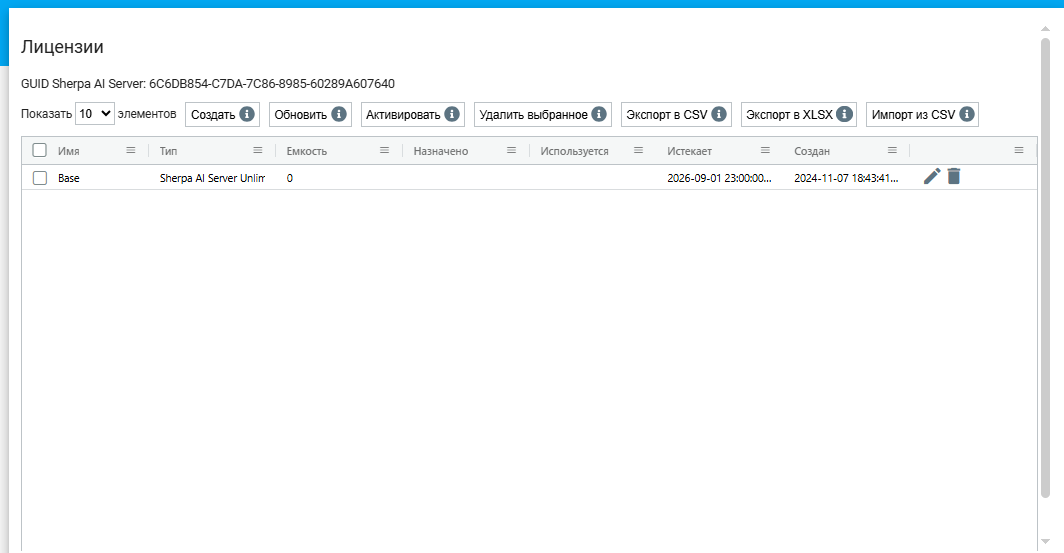
There are four types of Licenses available in Sherpa AI Server:
- Sherpa AI Server 500 t/s;
- Sherpa AI Server 1000 t/s;
- Sherpa AI Server 2000 t/s;
- Unlimited.
On this tab, you can:
- view previously created Licenses;
- add new Licenses;
- activate a License automatically (if there is internet access) or manually (by entering a response code);
- edit some data for previously created Licenses.
| No. | Interface Element | Description |
| 1. | “Create” button | Allows adding a new License. |
| 2. | “Refresh” button | Allows updating the data in the list. |
| 3. | “Activate” button | Allows activating the selected License. |
| 4. | “Delete Selected” button | Allows deleting the selected License. |
| 5. | “Export to CSV” button | Allows exporting the list of Licenses in CSV format. |
| 6. | “Export to XLSX” button | Allows exporting the list of Licenses in XLSX format. |
| 7. | “Import from CSV” button | Allows importing the list of Licenses from a CSV file. |
| 8. | “Name” column | The name of the License. |
| 9. | “Type” column | The type of License. |
| 10. | “Capacity” column | The volume of allocated resources. |
| 8. | “Assigned” column | Who the License is assigned to. |
| 9. | “In Use” column | Users who are currently using the License. |
| 10. | “Expires” column | The date and time of the License expiration. |
| 11. | “Created” column | The date and time the License was created. |
Creating and Activating a License#
To create a new License, you need to click the "Create" button in the "Licenses" table and fill out the form that appears in the "License" pop-up window.
.png)
Fields and checkbox to fill in the "License" pop-up window:
- Name * – a required field for entering the License name;
- Key * – a required field for entering the key provided by the vendor;
- Deny launch from Sherpa Designer – a checkbox that needs to be checked if you want to deny launching from Sherpa Designer.
To activate the created License, you need to click the "Activate" button and in the window that opens, choose one of two activation types: automatic or manual.
.png)
When selecting automatic activation, you need to click the "OK" button. Automatic activation is only possible if Sherpa AI Server has open internet access.
When selecting manual activation, a request code appears, which needs to be sent to the vendor for confirmation of manual activation. In response to the request code, you will receive a response code, which must be entered in the corresponding field, and then click the "OK" button. The License will be activated, and the date and time in the "Expires" column will change.
Editing a Previously Created License#
To view and edit a previously created License, you need to select it from the list and click the button  . After that, a form with the settings of the selected License will open, where you can make the necessary changes.
In addition to the fields filled in when creating a new License, the editing form has additional fields:
- "GUID" (a unique identifier assigned to the License after its creation). This field cannot be edited;
- "Expires" (the date and time of License expiration);
- "Created" (the date and time the License was created);
- "Updated" (the date and time the License was updated).