
Installing Sherpa RPA Runtime#
Sherpa RPA Runtime is the installer for the Robot in the User's account for use without the Designer. Sherpa RPA Runtime is used for deploying Attended robots, Unattended robots, as well as RDP and Citrix agents on end-user workstations. When installing Sherpa RPA Runtime, some tasks for Windows and some registry entries for RDP operation are created.
The installation is performed by the installer launched by the file SherpaRPARuntime.exe. Save this file to your computer and run it.
In the dialog that opens, check the installation options you need:
- Robot Mode: “Attended” or “Unattended”;
- Install for: “Current user” or “All users”.
The option for “All users” allows the Robot to work with the Citrix application. This is suitable when the Citrix farm dynamically allocates a workstation for a new session. That is, it is unknown in advance on which node of the farm the application will run.
More information about working with Citrix can be read here.
Then click the “Next” button:
.png)
After that, the installer will start the installation process, which will take a few minutes:
.png)
When the installation is complete, the installer will inform you with a dialog box, where you can click the “Finish” button to complete the installation process.
.png)
Sherpa RPA Runtime in Attended mode can work for both local launching of Attended robots using an activated License on the workstation and for remote launching, working through an RDP connection from another Attended or Unattended robot, in which case a License is not needed.
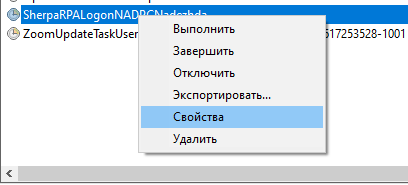
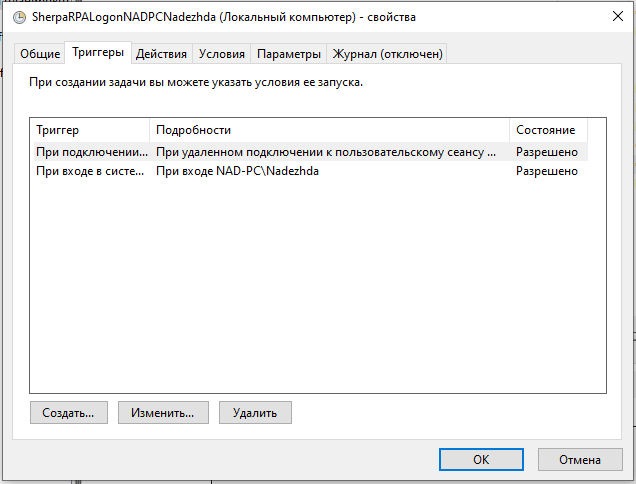
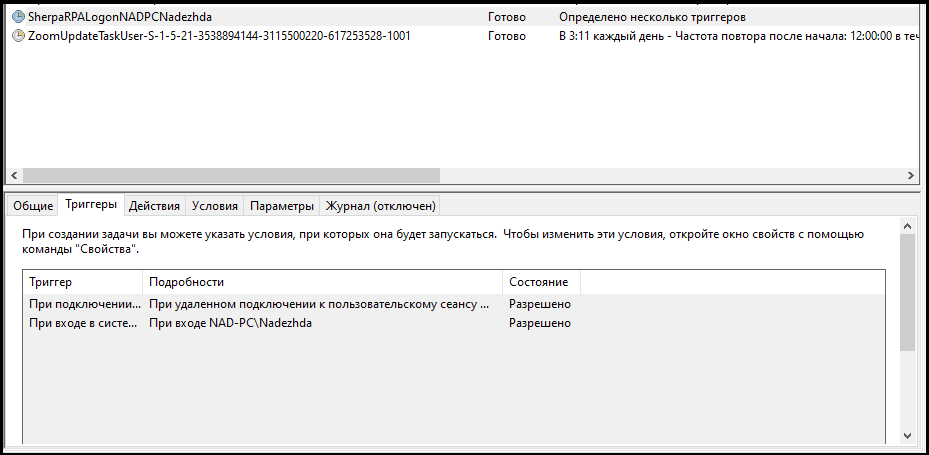
When installing an Unattended robot, one Task with two Triggers is created in the task scheduler. For user login and remote connection.
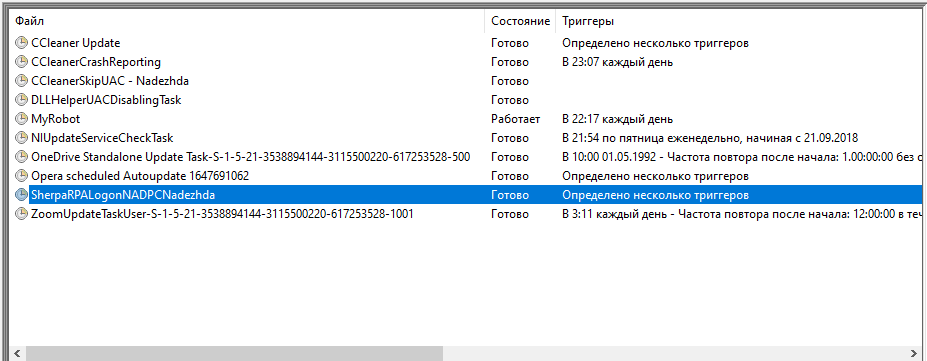
To see these Triggers, you can go to the Task properties:
Then go to the Triggers tab:
The Triggers are also displayed in the lower panel of the Task Scheduler (in the Triggers tab):
Adding a Machine to Sherpa Orchestrator#
- Log into the “Remote Desktop Connection” application:

- Enter your credentials and connect to the remote desktop:

- Install Sherpa RPA Runtime, Robot mode: Unattended.

- Launch Sherpa Assistant, find the icon in the tray and right-click on it. In the pop-up menu, select “Orchestrator…”:

In the “Server Domain / IP” field, paste the address of your orchestrator, for example:
https://your-domain-or-ip.

To fill in the “Robot GUID” field, log into Sherpa Orchestrator and go to the Robots tab. In the “Robot Groups” table, click on the row for the group “All Robots”. Above the “Robots” table, click the “Create” button. In the “Robot” window, fill in the fields:
- “Machine (IP address or domain name)”,
- “Domain (if any) and account login in the format domain\username”,
- “Account password”
with your credentials.

Next, in the same window, fill in the “Coordinator” and “License” fields with the necessary data from the drop-down lists. Click the “OK” button. After that, the data will be saved, and you will be able to select the created Robot in the “Robots” table and click the “Edit” icon to the right of its name:

Copy the data from the “Record GUID” field and paste it into the appropriate field in the Sherpa Assistant window:

Click the “Connect” button located below the “Robot GUID” field.
Return to Sherpa Orchestrator and check that the status “Ready” has appeared in the Robots table for your Robot:

- Go to the “Process” tab and check that the required Process is created (or create it using the “Create” button). When creating a Job, you will have the option to select this Process from the drop-down list.

 | Check in Sherpa Designer that logging to Sherpa Orchestrator is provided in the script: |

Go to the “Jobs” tab, click the “Create” button. In the “Process” field, enter the name of the Process, and in the “Robot” field, enter the name of the Robot. Click the “OK” button.
Click the “Refresh” button and check that the status has changed to “In Progress”:

Click the “Refresh” button and check that the status has changed to “Successful”:

- Go to the “Robot Messages” tab and check the row with your Robot:

Adding and configuring the machine in Sherpa Orchestrator has been successfully completed.