
Working in Sherpa Designer#
The default user interface of Sherpa Designer consists of the following main areas:
- Main menu (top panel).
- Main panel (left panel).
- Central workspace.
- Properties panel (upper right panel).
- Variables panel (lower right panel).
- Lower central panel.
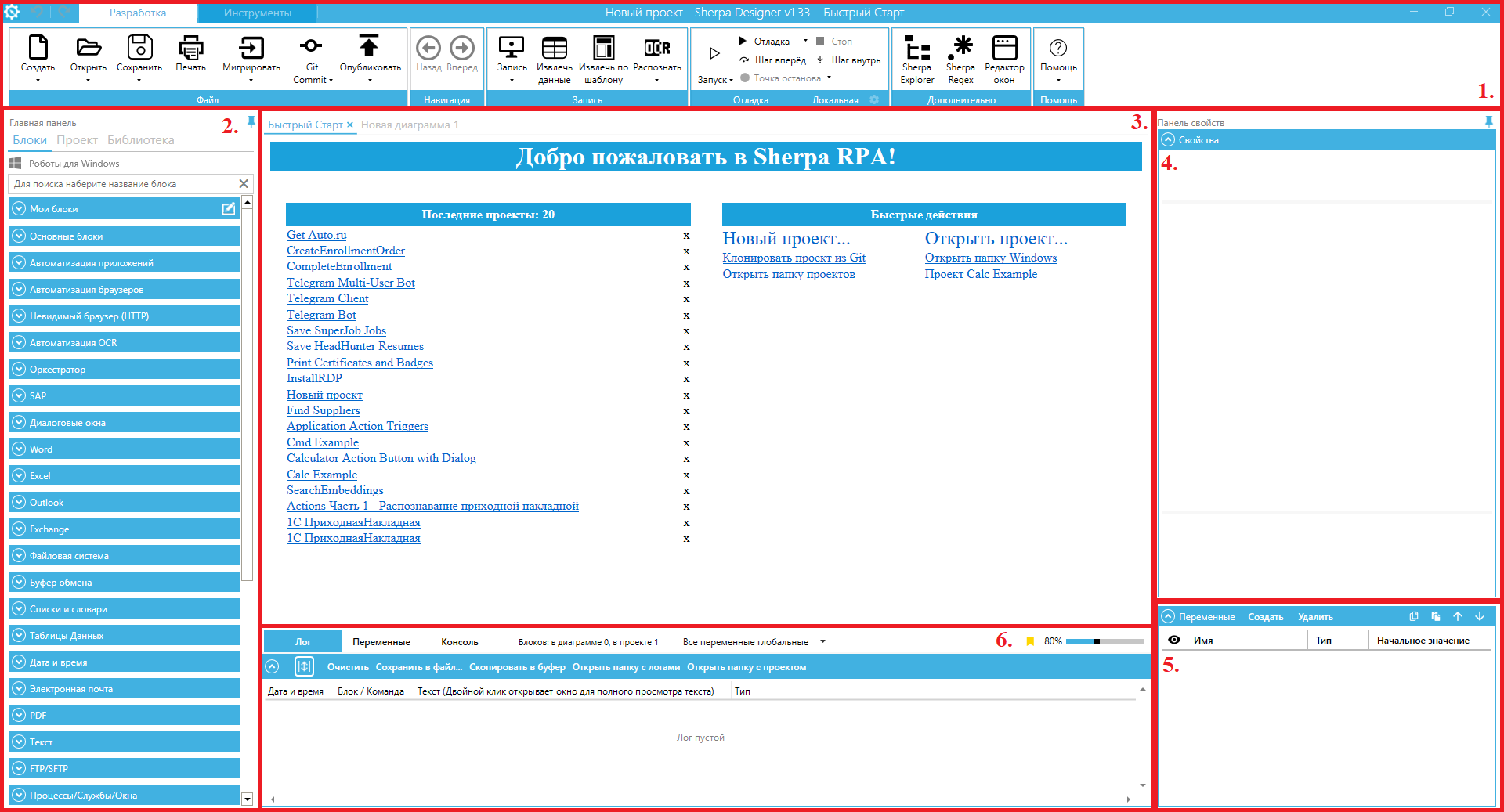
| No. | Interface Element | Description |
| 1. | “Main Menu” | Contains the main actions for configuring and managing projects and robot diagrams. The main menu includes:
|
| 1.1. | File menu | Contains actions necessary for working with projects:
|
| 1.2. | Navigation menu | Allows navigation between robot diagrams. |
| 1.3. | Record menu | Contains actions necessary when working with recording user actions in applications and on web resources, as well as with data extraction by the templater:
|
| 1.4. | Debug menu | Contains actions necessary for starting robot debugging, as well as remote debugging of the robot. |
| 1.5. | Advanced menu | Contains additional actions for working with robot diagrams:
|
| 1.6. | Help menu | Allows access to training materials: training videos, examples of working with the program, demonstration projects. |
| 2. | “Main Panel” | The main panel includes the following tabs:
|
| 2.1. | Blocks tab | Allows opening the palette of functional blocks for creating projects. |
| 2.2. | Project tab | Provides access to all diagrams and files of the current project, as well as allows renaming, deleting, or adding new files to the project. |
| 2.3. | Library tab | Allows opening the library of ready-made processes. |
| 3. | Central Workspace | This area is intended for working with the blocks of the current process diagram. |
| 4. | Properties Panel | The panel is intended for managing the properties of the selected block in the diagram. |
| 5. | Variables Panel | The panel is intended for displaying the variables of the current process diagram. |
| 6. | Lower Central Panel | The panel is intended for displaying logs of all actions of the software robot. |
| 6.1. | Log tab | Allows viewing the logs of all actions of the software robot. |
| 6.2. | Variables tab | Allows viewing all existing variables of the current process. |
| 6.3. | Console tab | Allows working with the robot's console. |
Additionally, the user interface of Sherpa Designer has an additional toolbar that opens when clicking on the “Tools” tab at the top of the interface.
| No. | Interface Element | Description |
| Edit menu | Contains actions necessary for working with the blocks of the robot diagram:
| |
| Diagram menu | Contains actions necessary for building the robot diagram:
| |
| Parameters menu | Contains actions necessary for working with program parameters:
| |
| Tools menu | Contains actions necessary for convenient interface configuration:
|
.png)
The top panel of the Designer includes buttons for undoing and redoing the last action: by the buttons .png) and
and .png) , respectively. Also, some actions from the Main Menu of the Designer are duplicated by the button.
, respectively. Also, some actions from the Main Menu of the Designer are duplicated by the button.
.png)