
Properties Panel#
When creating a new diagram block, it is necessary to specify certain properties of the block that determine its behavior. The properties panel allows you to view and modify the properties of the selected block.
The screenshot shows an example of the properties of the "Recognize by Template" block.
.png)
Block properties mostly fall into three categories:
- Basic properties – intended to obtain values necessary for the block's operation (input data);
- Additional properties – intended to obtain values that are not mandatory for the block's operation but allow further control over its settings;
- Output – intended to specify where to place the output data; in such properties, you need to specify the variables where the results of the block's operation will be saved.
The properties of blocks that determine their operation can be specified as:
- Constants. Numbers are written as they are, and text values are enclosed in double quotes.
- Variables, whose names must start with the $ sign.
- Expressions – combinations of constants, variables, functions, and methods.
To change a property, you need to enter a value in the field to the right of the property name or use a more convenient option – the "Edit Expression" window. To invoke the "Edit Expression" window, you need to click the button with ellipsis on the right side of the "Properties" line.
 (1).png)
The "Edit Expression" window contains three tabs:
- Quick Insert;
- Smart Assistant;
- Variables.
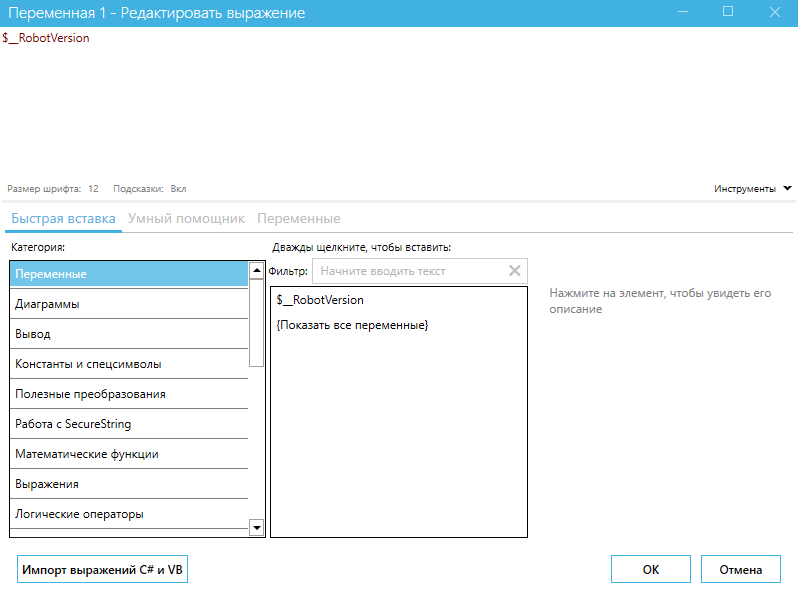
| No. | Interface Element | Description |
| 1. | "Font Size"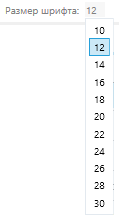 | Allows you to select a comfortable font size in the "Edit Expression" window. |
| 2. | "Hints"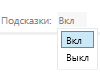 | Allows you to enable or disable hints in the "Edit Expression" window. This feature indicates errors in expressions, if any. |
| 3. | "Tools"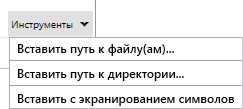 | Allows you to insert property values, file paths, directories, or insert with character escaping (quotes, dollar sign). |
| 4. | "Import C# and VB Expressions" (1).png) | Allows you to import C# and VB expressions. When the button is clicked, a window opens with a text field for pasting the expression, as well as the option to select the expression language "C#", "Blue Prism", "Visual Basic". |
The "Quick Insert" tab allows you to select the category of the expression and the expression itself from the provided list. Additionally, when selecting an expression, you can use the text field "Filter:".
 (1).png)
The "Smart Assistant" tab allows you to describe in simple words the task that needs to be solved in the text field "Your Request:", after which the Smart Assistant will suggest a suitable expression for it.
 (1).png)
The "Variables" tab allows you to specify the necessary project variable. You can use the text field "Filter:" for searching.
The list of variables includes columns: "Name" of the project variable, its "Type," and the "Diagram" in which it is used.

Not all block properties can accept expressions. In properties that do not have a button with ellipsis, you can only enter constant values or select them from the provided list.