
Anchors#
Anchors are blocks in the processed document that the Robot uses to determine where specific data is placed within the document.
.png)
Anchors define the boundaries of specific Attributes. There can be an unlimited number of Anchors, depending on the type of document.
Tools for Working with Anchors#
When creating a new Anchor, a list of properties and tools for working with the Anchor opens on the workspace panel.
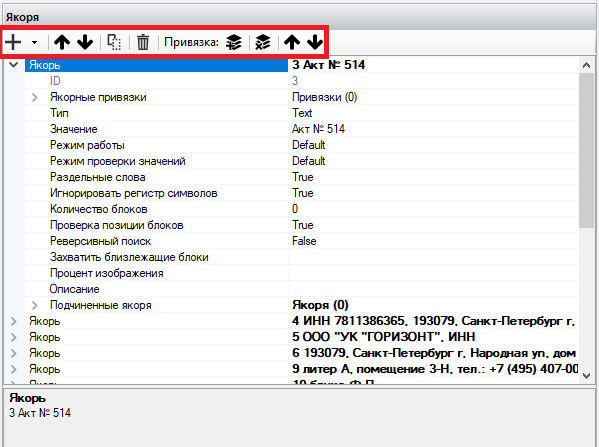
The main tools for working with Anchors:
| No. | Tool | Description |
| 1. | button .png) | Allows you to add a new Anchor. The button |
| 2. | button .png) | Allows you to move the Anchor up. |
| 3. | button .png) | Allows you to move the Anchor down. |
| 4. | button .png) | Allows you to copy the selected Anchor and automatically add a new Anchor with the specified settings. |
| 5. | button .png) | Allows you to delete the selected Anchor. |
| 6. | button .png) | Allows you to add a new binding to the selected Anchor. |
| 7. | button .png) | Allows you to delete the selected binding. |
| 8. | button .png) | Allows you to move the binding up. |
| 9. | button .png) | Allows you to move the binding down. |
.png) allows you to add a new subordinate Anchor; you need to select the property “New subordinate anchor” from the list.
allows you to add a new subordinate Anchor; you need to select the property “New subordinate anchor” from the list.Anchor Settings#
Anchor settings parameters:
.png)
| No. | Parameter | Parameter Value |
| 1. | ID | Anchor identifier. Assigned automatically. |
| 2. | Anchor Bindings | List of anchor bindings. |
| 3. | Type | Type of Anchor. Selected from a dropdown list:
|
| 4. | Value | Value of the Anchor. For Anchors of type “Table”, the value is recorded in the format: “Table index:Row index:Column index” Example for an Anchor of type “Text”:
(two words when “Separate words” is enabled) Examples for an Anchor of type “Table”:
(table 0, row 1, column 2)
(table 1, row 2)
(entire table 2) |
| 5. | Operation Mode | Operation mode of the Anchor.
|
| 6. | Value Check Mode | Select the value check mode.
|
| 7. | Separate Words | The value of the Anchor is split into words, and each word is searched separately. |
| 8. | Ignore Case | When enabled, case sensitivity will be ignored. |
| 9. | Number of Blocks | If the “Separate Words” setting is enabled, there may be a situation when multiple block values corresponding to the specified words can be found in the designated area during the Anchor search. This property allows limiting the maximum number of words between blocks. |
| 10. | Check Block Position | When enabled, the position of blocks is checked relative to the Y coordinate, and blocks with the smallest value are taken. |
| 11. | Reverse Search | When enabled, the Anchor search will proceed from the bottom of the page. |
| 12. | Capture Nearby Blocks | Capture of nearby Anchor blocks. Allows capturing nearby blocks from the already captured value in the Anchor. For example, if you specify +2-1, then nearby blocks (2 blocks to the right and 1 block to the left) will be added to the already captured Anchor.This property can be used when it is not possible to establish a complete stable value for the Anchor, but part of it has a stable value. |
| 13. | Image Percentage | The percentage of the image in which the Anchor will be searched. 30 (0-30) - 0-30% of the image will be used; |
| 14. | Description | User description of the Anchor. |
| 15. | Subordinate Anchors | Anchors that directly depend on the parent Anchor.
the search for subordinate Anchors will not be performed, and the Anchors will be skipped. |