
Accounts#
The "Accounts" tool allows you to create multiple independent areas within the Sherpa AI Server, each of which will have its own chats, chat histories, documents, files, and users, allowing for the isolation of different departments' work within the company. There are no limitations on the number of accounts created in the Sherpa AI Server.
Accounts within the Sherpa AI Server are not users. A separate tool called "Users" is provided to define user rights.
.png)
| No. | Interface Element | Description |
| 1. | "Create" button | Allows you to create new accounts. |
| 2. | "Refresh" button | Forces a refresh of the "Accounts" table. |
| 3. | "Delete Selected" button | Allows you to delete selected accounts from the Sherpa AI Server. Individual accounts can also be deleted by clicking the .png) button in the corresponding row of the "Accounts" table. A confirmation window appears when deleting an account. button in the corresponding row of the "Accounts" table. A confirmation window appears when deleting an account. |
| 4. | "Export to CSV" button | Generates a data file of accounts in CSV format for import into spreadsheets and accounting systems. |
| 5. | "Export to XLSX" button | Generates a data file of accounts in Microsoft Excel (XLSX) format for import into spreadsheets and accounting systems. |
| 6. | "Account Login" column | Unique identifier of the account in the Sherpa AI Server. |
| 7. | "Company" column | Name of the organization for which the account was created. |
| 8. | "Department" column | Name of the division or department of the company. |
| 9. | "First Name" column | First name of the account administrator. |
| 10. | "Last Name" column | Last name of the account administrator. |
| 11. | "Email" column | Email of the account administrator. |
| 12. | "Phone" column | Contact phone of the account administrator. |
| 13. | "Created" column | Date and time the account was created. |
Create Account#
To create a new account, you need to click the "Create" button in the "Accounts" table and fill out the form that appears.
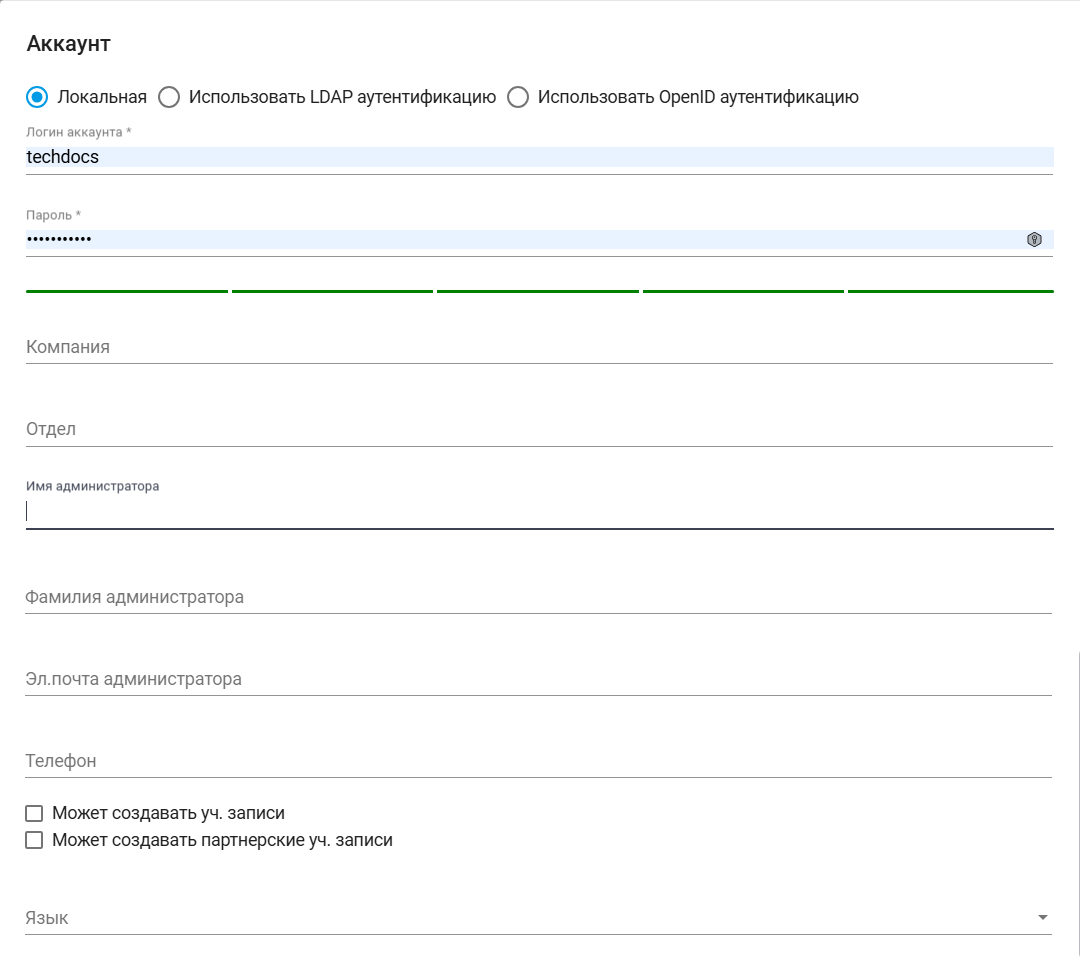
The new account creation form offers three authentication options, from which you can select the desired one by setting the flag:
- "Local Authentication";
- "LDAP Authentication";
- "OpenID Authentication".
The new account creation form consists of:
| No. | Interface Element | Description |
| 1. | "Local" checkbox | Allows you to set the local authentication option for the account. |
| 1.1 | "Account Login" text field | Account login. This field is required. |
| 1.2. | "Password" text field | Account password. This field is required. |
| 2. | "Use LDAP Authentication" checkbox | Allows you to set the account authentication option via LDAP. |
| 2.1 | "LDAP Users" field | Allows you to specify an LDAP user using a dropdown list. This authentication option is available if the Sherpa AI Server configuration includes connection details for the LDAP server. This field is available during LDAP authentication. |
| 3. | "Use OpenID Authentication" checkbox | Allows you to set the account authentication option via OpenID. |
| 3.1 | "oAuth id" text field | OAuth identifier. This field is required. This field is available during OpenID authentication. |
| 4. | "Company" text field | Name of the company where the account will be created. |
| 5. | "Department" text field | Name of the department/division, workplace. |
| 6. | "Administrator First Name" text field | First name of the account administrator. |
| 7. | "Administrator Last Name" text field | Last name of the account administrator. |
| 8. | "Administrator Email" text field | Email of the account administrator. |
| 9. | "Phone" text field | Phone of the account administrator. |
| 10. | "Can Create Accounts" checkbox | Allows the account to have the right to create other accounts. |
| 11. | "Can Create Partner Accounts" checkbox | Allows the account to have the right to create partner accounts. |
| 12. | "Language" field | Allows you to select the language that will be set as the default for the account. Possible options:
|
Edit Account#
To view and edit the properties of a specific Account, you need to select it from the list and click the button .png) . After that, a form with the Account settings will open, where you can make the necessary changes. There are no new fields in the previously created Account.
. After that, a form with the Account settings will open, where you can make the necessary changes. There are no new fields in the previously created Account.