
Attributes#
Attributes allow you to define and designate areas of the document from which data will be recognized by the Robot and imported into the Results table.
The main tools for working with Attributes:
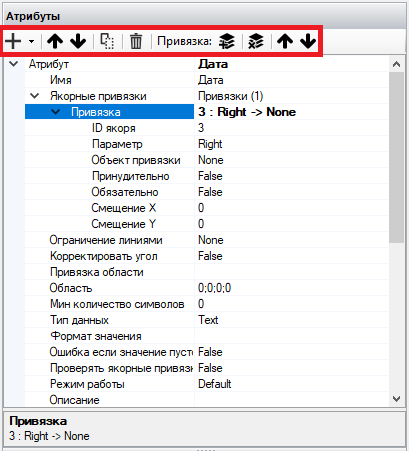
| No. | Tool | Description |
| 1. | button .png) | Allows you to add a new Attribute. |
| 2. | button .png) | Allows you to move the Attribute up. |
| 3. | button .png) | Allows you to move the Attribute down. |
| 4. | button .png) | Allows you to copy the selected Attribute. |
| 5. | button .png) | Allows you to delete the selected Attribute. |
| 6. | button .png) | Allows you to add a new binding to the selected Attribute. |
| 7. | button .png) | Allows you to delete the selected binding. |
| 8. | button  | Allows you to move the binding up. |
| 9. | button  | Allows you to move the binding down. |
Properties of Attributes#
When creating a new Attribute, a list of properties and tools for working with the Attribute opens on the workspace panel.
.png)
Properties and tools for working with the Attribute:
| No. | Property/Tool | Description |
| 1. | Name | The name of the Attribute that will be reflected in the results. |
| 2. | Anchor Bindings | A list of anchor bindings for the Attribute. |
| 3. | Line Restrictions | When this setting is enabled, line restrictions are searched for. The Attribute can be restricted from any side relative to the lines recognized by the OCR module. These lines are displayed when the “OCR Lines” button is pressed. Possible values:
|
| 4. | Adjust Angle | When this setting is enabled, the angle of the area is adjusted. When the “Auto Align” value is enabled, angle adjustment is not needed. |
| 5. | Area Binding | The binding to the area is done by 4 parameters:
The origin point of the area is at the top left. |
| 6. | Area | The rectangle of the Attribute area on the page. |
| 7. | Min Number of Characters | The minimum number of characters contained in the Attribute. The default value is set to This setting is used if the Attribute must contain a certain number of characters, for example, the “Tax ID” Attribute. If the computed value is less than specified, an error will be generated. |
| 8. | Data Type | The data type for the Attribute. Possible values:
|
| 9. | Value Format | The format of the Attribute value. Specifies the formatting of the value. For example:
|
| 10. | Error if Value is Empty | If the Attribute value is empty during template processing, a recognition error will be generated. |
| 11. | Check Anchor Bindings | Check the anchor bindings of the Attribute. When this setting is enabled, the anchor bindings will be checked. If any of the bindings are not found, the Attribute will also not be found. |
| 12. | Operating Mode | The operating mode of the Attribute. Possible values:
|
| 13. | Description | User description of the Attribute. |