
Object Folders#
The "Object Folders" screen allows you to create and edit Access Folders, which provide the ability to more precisely restrict access to Orchestrator objects for different User Roles. In the top panel of the Orchestrator, there is an "Access Folders" filter that allows you to display only the objects located in the selected Folder and objects that have not been assigned any Folders:
.png)
Using the Roles screen, you can set the access rights of a Role to specific Access Folders, after which, when creating and editing Orchestrator objects (Robots, Processes, Packages, Resources, Storage, Queues, Actions and Triggers) on the corresponding screens, you can specify a specific "Access Folder" for the selected object.
The "Object Folders" screen contains a table of "Object Folders."
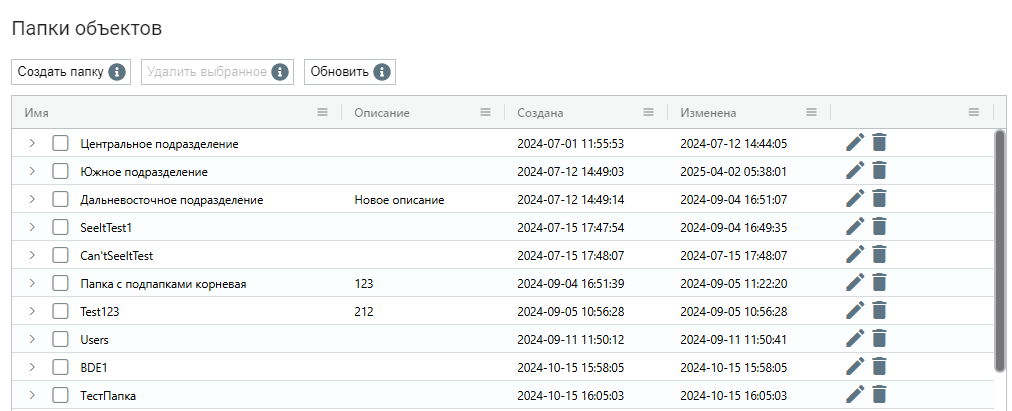
Creating a New Object Folder#
To create a new Object Folder, you need to click the "Create" button in the "Object Folders" table and fill out the opened form.
.png)
Editing a Previously Created Object Folder#
To view and edit the properties of a specific Object Folder, you need to select it from the list and click on the icon  . After that, a form with the Object Folder settings will open, where you can make the necessary changes. In addition to the fields filled out when creating the Object Folder, the form will display the GUID (unique identifier assigned to the folder after its creation) during editing. This field cannot be edited.
.png)