
Roles#
The "Roles" tab is intended for configuring user access rights to the tools of Sherpa AI Server. The number of roles that can be created is unlimited.
.png)
| No. | Interface Element | Description |
| 1. | "Create" button | Allows creating new Roles. |
| 2. | "Refresh" button | Forces the "Roles" table to refresh. |
| 3. | "Delete Selected" button | Allows deleting selected Roles from Sherpa AI Server. Individual Roles can also be deleted by clicking the button in the corresponding row of the "Roles" table. A confirmation window appears when deleting Roles. |
| 4. | "Export to CSV" button | Generates a Roles data file in CSV (Comma-Separated Values) format for importing into spreadsheets and accounting systems. |
| 5. | "Export to XLSX" button | Generates a Roles data file in Microsoft Excel (XLSX) format for importing into spreadsheets and accounting systems. |
| 6. | "Name" column | The name of the Role in Sherpa AI Server. |
| 7. | "Description" column | Description of the Role, containing information about the purpose of the Role. |
| 8. | "Access" column | List of access rights for the Role indicating permissions (Create/Read/Update/Delete) for the following tools: Licenses, Accounts, Roles, Users, API, Audit, Object Folders, Documents, Chat History, Chat GPT, Assistants, Models, Moderation. |
Create Role#
To create a new Role, click the "Create" button in the "Roles" table and fill out the form that appears in the "Role" popup window.
Fields and checkboxes to fill out in the "Role" popup window:
- The "Main" tab includes fields:
- Name* – a mandatory field for entering the role name;
- Description – a field for entering the role description.
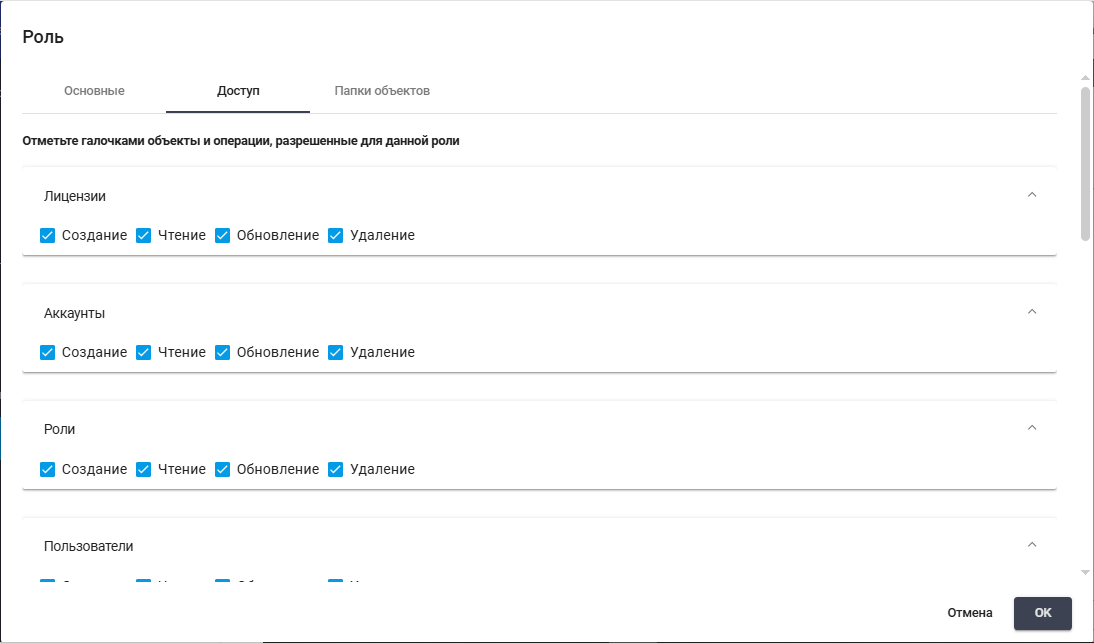
- The "Access" tab includes checkboxes:
- Licenses:
- Create – allows the creation of new licenses;
- Read – allows viewing the list of licenses and their properties;
- Update – allows editing existing licenses;
- Delete – allows deleting licenses;
- Accounts:
- Create – allows the creation of new accounts;
- Read – allows viewing the list of accounts and their properties;
- Update – allows editing existing accounts;
- Delete – allows deleting accounts;
- Roles:
- Create – allows the creation of new roles;
- Read – allows viewing the list of roles and their properties;
- Update – allows editing existing roles;
- Delete – allows deleting roles;
- Users:
- Create – allows the creation of new users;
- Read – allows viewing the list of users and their properties;
- Update – allows editing existing users;
- Delete – allows deleting users;
- API:
- Create – allows the creation of new APIs;
- Read – allows viewing the list of APIs;
- Update – allows editing existing APIs;
- Delete – allows deleting APIs;
- Audit:
- Create – allows the creation of audit records;
- Read – allows viewing the audit log;
- Update – allows editing audit records;
- Delete – allows deleting audit records;
- Object Folders:
- Create – allows the creation of new access folders;
- Read – allows viewing the structure and properties of access folders;
- Update – allows editing the properties of access folders;
- Delete – allows deleting access folders;
- Documents:
- Create – allows the creation of new documents;
- Read – allows viewing the list of documents and their content;
- Update – allows editing existing documents;
- Delete – allows deleting documents;
- Chat History:
- Create – allows the creation of chat history records;
- Read – allows viewing chat history;
- Update – allows editing chat history records;
- Delete – allows deleting chat history records;
- Chat GPT:
- Create – allows the creation of GPT chat sessions;
- Read – allows viewing GPT chat history;
- Update – allows editing GPT chat settings;
- Delete – allows deleting GPT chat sessions;
- Assistants:
- Create – allows the creation of new assistants;
- Read – allows viewing the list of assistants and their properties;
- Update – allows editing existing assistants;
- Delete – allows deleting assistants;
- Models:
- Create – allows adding new AI models;
- Read – allows viewing the list of available AI models;
- Update – allows editing AI model settings;
- Delete – allows deleting AI models;
- Moderation:
- Create – allows the creation of moderation rules;
- Read – allows viewing the list of moderation rules;
- Update – allows editing moderation rules;
- Delete – allows deleting moderation rules.
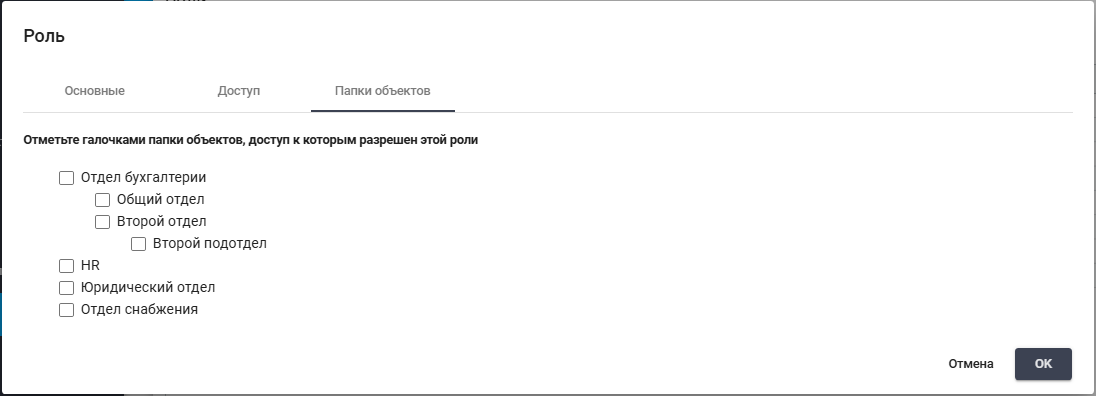
- The "Object Folders" tab includes checkboxes that define specific access folders to which the role is granted. Available folders for selection are displayed as a hierarchy tree.
Checkbox structure:- The checkbox for the root folder automatically grants access to all nested folders;
- The checkbox for a nested folder grants access only to that folder.
Edit Role#
To view and edit a Role, select it from the list and click the icon .png) . After that, the Role editing form will open, where necessary changes can be made.
. After that, the Role editing form will open, where necessary changes can be made.
In the "Main" tab, in addition to the fields filled in when creating the Role, the form shows the GUID (unique identifier assigned to the role after its creation). This field cannot be edited.
.png)
In the "Access" tab, all objects and operations allowed for this Role can be checked.
.png)
In the "Object Folders" tab, access folders that are allowed for this Role can be checked.
.png)