
Web Selectors Guide#
In this section, we do not cover the basic ways to record and use selectors in Sherpa RPA using the button and the "Recording" panel. If you are not familiar with the basic techniques for recording selectors:
- refer to the "Setting Up Selectors" section:
- check out the tutorial videos on our official YouTube channel (or Rutube channel):
Also, in this section, we do not cover desktop selectors. Here we discuss ways to select web selectors in complex cases.
To find elements on a web page in the browser automation palette, CSS or XPath selectors can be used. In Sherpa RPA, the User Action Recorder by default records CSS selectors.
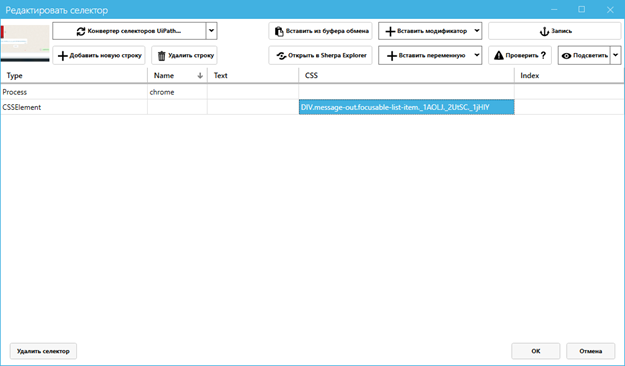
If you want to manually use an XPath selector instead of a CSS selector, add the prefix xpath: to the selector in the CSS column in the "Edit Selector" window.
Using XPath instead of CSS in selectors is demonstrated in the video:
In most cases, there are no differences between CSS and XPath. Almost any CSS selector can be converted to XPath, and vice versa — these are two alternative ways to denote the same elements. Typically, CSS selectors are simpler and shorter to read, which is why Sherpa RPA uses them by default.
XPath has additional capabilities for working with the textual content of elements; however, in Sherpa RPA, there is a separate "Text" column in the selectors window for such tasks. It provides the same functions as XPath and is a more convenient alternative.
The list of possible prefixes is available in the dropdown menu of the "Insert Modifier" button in the "Edit Selector" window. In particular, the regex: prefix is available, which allows the use of regular expressions in the text columns of the selector (for example, in the "Text" column). Wildcards are also available in the text columns of the selector:
*(matches any sequence of characters),?(matches exactly one character).