
Assistants#
The "Assistants" menu item provides the User with the ability to create and configure interactions with personalized Assistants. When this item is selected, a "Create Assistant" button appears, which in turn initiates a pop-up window with two tabs: "Assistant," "Telegram bot."

"Assistant" Tab#
On the "Assistant" tab, Users can configure the parameters of their Assistant.
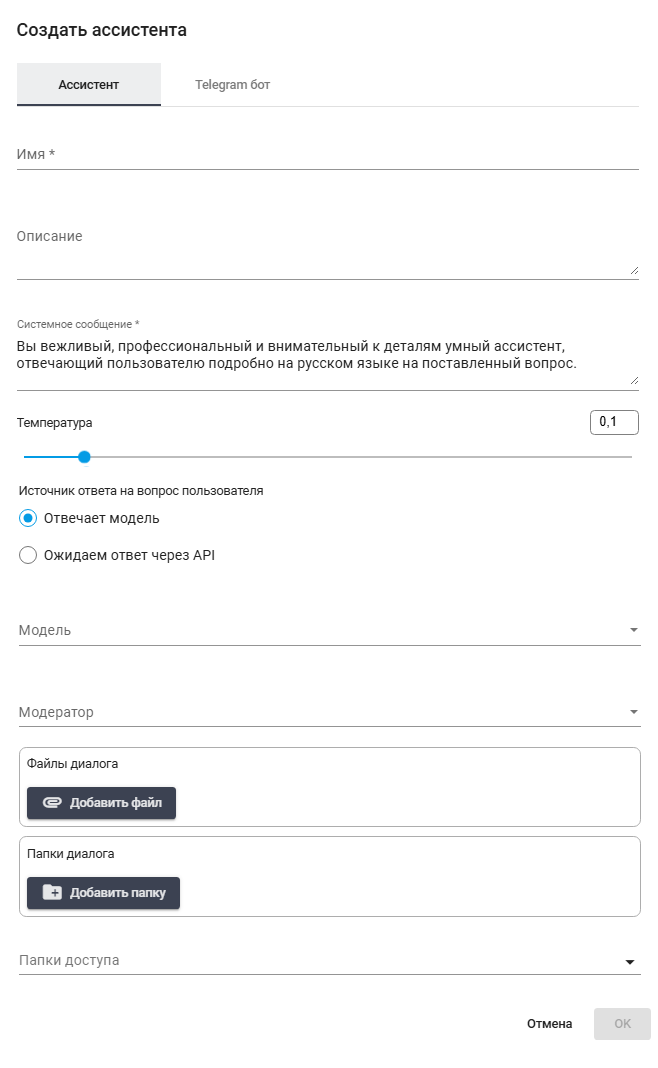
Includes the following fields:
- Name *
This field is intended for entering a unique Name for the Assistant. The specified Name will be used by Users when addressing the Assistant. For example, "Your helper" or "Support service."
- Description
In this field, you can specify what tasks the Assistant can perform and/or provide a brief overview of its functionality. This will help Users understand how to better interact with the Assistant.
- System Message
In this field, you can specify a system message that will be sent to the Assistant for processing requests. This message can contain instructions on how the Assistant should behave, what style to respond in, or what information to use.
- Temperature

The slider allows you to adjust the creativity of the Assistant's responses — the higher the value, the more random and less predictable the responses will be. This can be useful in situations where more variety in responses is required.
In the upper right corner, a counter is displayed 
The "Temperature" setting allows you to regulate the creativity of the neural network on a scale from 0 to 1, where:
0 – no creativity. All responses to the same questions will be almost identical, strict, and concise. This mode is suitable for situations where precise answers or solutions to coding tasks are required.
1 – maximum degree of creativity. All responses from the neural network will be different and unpredictable. Suitable for writing articles and creative texts.
By default, the "Temperature" value is set at 0.5. If you are working with documents, it is recommended to set the value to 0.4.
- Source of the User's Question Response
Checkboxes to specify the source of information that the Assistant will use to generate responses.

- Model
A dropdown list for selecting the language model used by the assistant. Available options:
- Cloud;
- Yandex-Lite;
- Qwen3-30B-A3B-AWQ;
- gemini-3;
- olmOCR-2-7B-1025-FP8;
- Local;
- Meta-Llama-3-8B-Instruct.
.png)
- Moderator
Allows you to select one of the moderation rule sets formed on the Moderation tab.
.png)
- Dialogue Files

The "Add File" button allows you to upload necessary files that can be used during the dialogue. These can be text documents, images, or other types of files that will help the Assistant provide reasoned responses.
- Dialogue Folders

The "Add Folder" button allows you to specify folders where the Assistant's dialogues will be stored. This will help structure interactions and easily find necessary data in the future.
- Access Folders
Selection of directories that the Assistant has access to. Defines the areas of data available for analysis in dialogues.
.png)
"Telegram Bot" Tab#
On the "Telegram Bot" tab, users can integrate their Assistant with the Telegram platform, opening up new opportunities for interaction.
.png)
- Telegram Bot Token
In this field, the User needs to specify the token obtained from BotFather in Telegram. This will allow the creation of a functional bot that will respond to user requests via Telegram.
- Telegram Bot Welcome Text
This field is intended for entering a welcome message that Users will see after starting the bot or entering the /start command. The welcome message can be personalized and serve to inform Users about available commands or the functionality of the bot.