
Sherpa Autopilot Main Interface#
After user authorization, the Sherpa Autopilot main interface opens, consisting of the following areas:
- The "Getting Started in Sherpa Autopilot" panel (central area of the screen).
- Task input bar.
- Left panel.
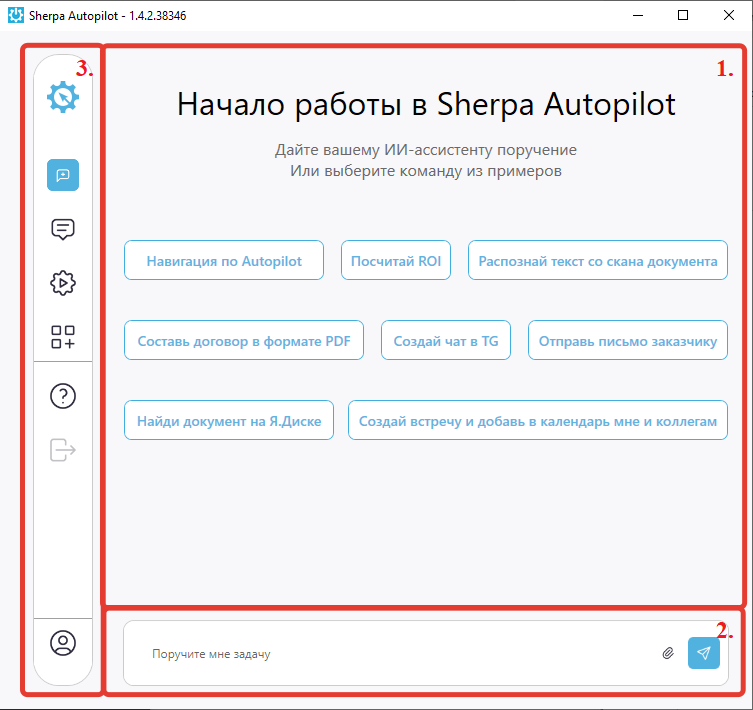
The Sherpa Autopilot main screen is designed for getting started with the AI assistant and selecting a typical task execution scenario.
The central part of the window displays a greeting and a hint suggesting either entering a custom task or selecting one of the ready-made example commands.
At the bottom of the window is the task input bar with the prompt "Assign me a task". Nearby are buttons for attaching a file and sending a message, allowing the user to formulate a request and direct Sherpa Autopilot.
On the left is a vertical navigation panel with application section icons. It provides access to the main interface functions, including settings, chat, scenario launch, adding items, help, sign out, and user profile.
| No. | Interface Element | Description |
| 1. | "Getting Started in Sherpa Autopilot" panel | Contains a greeting: "Give your AI assistant an assignment or choose a command from the examples" and buttons that, when clicked, launch one of the ready-made commands. |
| 2. | Task input bar | Allows selecting directories accessible to the Assistants. Defines the data areas available for analysis in dialogues. |
| 2.1. | "Assign me a task" field | Text field for manually entering the user's task. |
| 2.2. | "Attach file" button | Allows passing documents, images, and other materials to the input request that may be used when executing the task. |
| 2.3. | "Send" button | Initiates the transmission of the entered text or attached data to Sherpa Autopilot. After clicking, the request is sent to the system for processing by the AI assistant. |
| 3. | Left panel | Vertical navigation panel. |
| 3.1. | "sherparpa.ru website" button | Opens the official Sherpa RPA website. Used to navigate to an external resource with information about the product, company, and related materials. |
| 3.2. | "New chat" button | Creates a new chat and clears the current conversation context. Allows starting a separate dialogue on a new task. |
| 3.3. | "My chats" button | Opens the list of previously created user chats. Allows returning to saved dialogues and continuing work on already started tasks. |
| 3.4. | "Skill list" button | Displays the list of available Skills that can be used in Sherpa Autopilot. The user can browse the available scenarios and select the one needed to complete a task. |
| 3.5. | "Skill marketplace" button | Opens the Skills marketplace, where additional ready-made solutions are available. |
| 3.6. | "Help" button | Opens the help section for working with Sherpa Autopilot. |
| 3.7. | "Sign out" button | Ends the current user session in the system. After clicking, the user is signed out and returned to the Sherpa Autopilot start screen. |
| 3.8. | "Profile" button | Opens the "Account Settings" screen. |