
"Process Document" Button#
The "Process Document" button allows you to start processing the document based on the selected parameters for displaying:
- anchors,
- attributes,
- tables,
- table drawings,
- OCR blocks,
- OCR tables,
- OCR lines in the workspace.
The processed document looks as shown in the screenshot:
.png)
You can also select one or more criteria from the top panel of the main menu of the Template Designer:
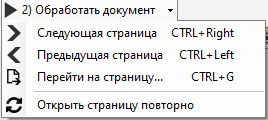
You have the option to:
- process the next page (Ctrl+Right),
- process the previous page (Ctrl+Left),
- go to a page (Ctrl+G),
- reopen the page.
The button “Reopen Page” allows you to open the original document without any changes made in the Template Designer settings. This function is used to verify the correctness of the specified settings in the Template Designer. Thus, you can check, for example, whether the setting “Page Rotation” is working.
If when pressing the “Reopen Page” button we see that the document was initially incorrectly rotated, it means that the Template Designer settings were set correctly and the Auto-Rotation of the page was triggered during processing.