
Setting Up Connections to Services#
Connections to third-party service accounts are made in the "Services" tab of the Sherpa Assistant settings.
Yandex Cloud#
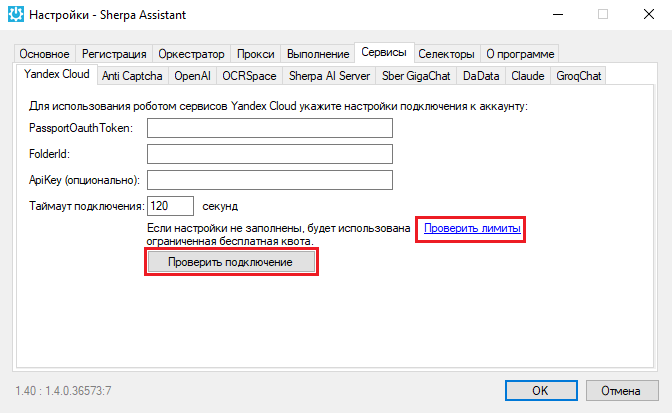
To set up a connection to your Yandex Cloud account, go to the internal tab "Yandex Cloud" and specify the connection settings for your account.
.png)
If necessary, you can check the limits and verify the connection using the corresponding buttons.
Anti Captcha#
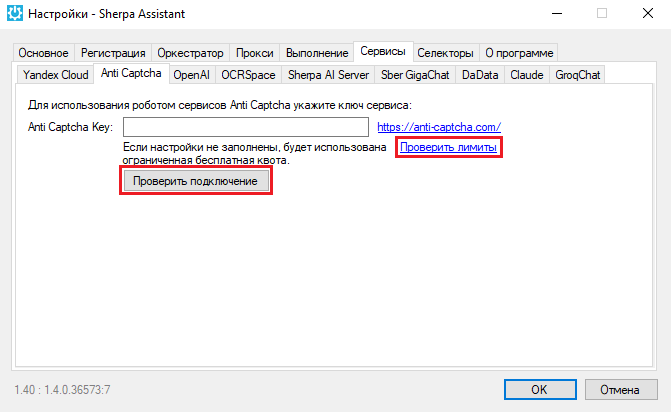
To connect to the Anti Captcha service, go to the internal tab "Anti Captcha" and specify the service key.
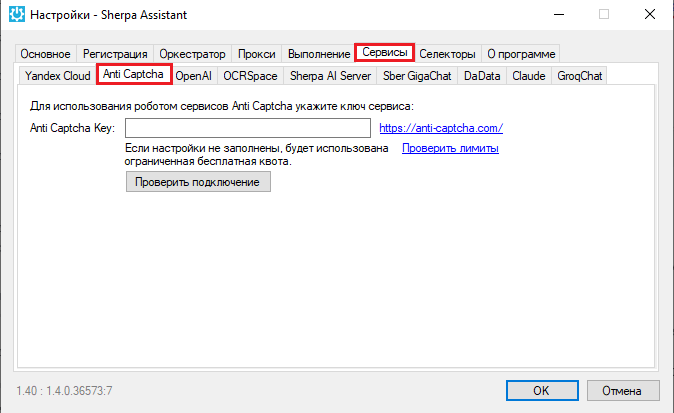
If necessary, you can check the limits and verify the connection using the corresponding buttons.
OpenAI#
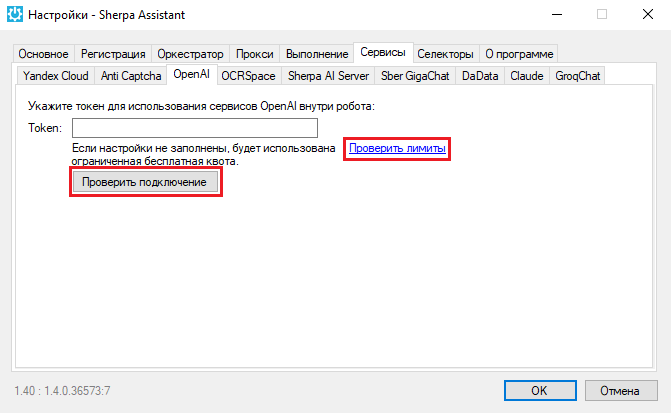
To connect to the OpenAI service, go to the internal tab "OpenAI" and specify the token for using OpenAI services within the Robot.
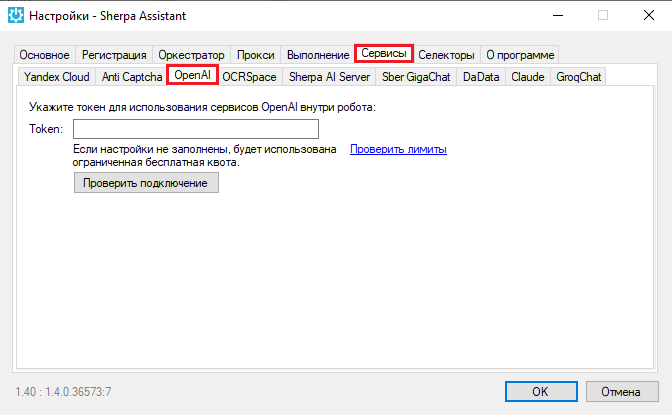
If necessary, you can check the limits and verify the connection using the corresponding buttons.
OCRSpace#
To connect to the OCRSpace service, go to the internal tab "OCRSpace" and specify the API key for using OCRSpace services within the Robot.
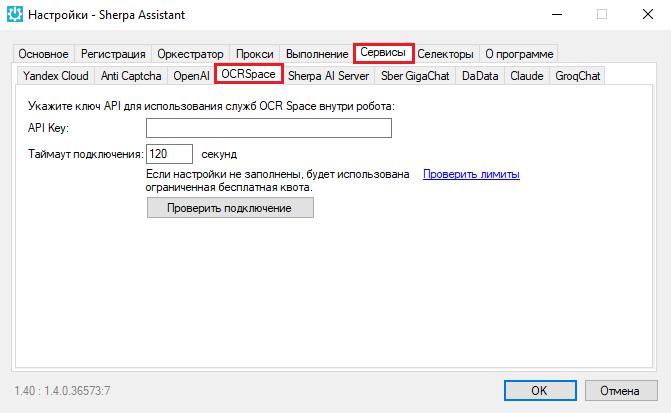
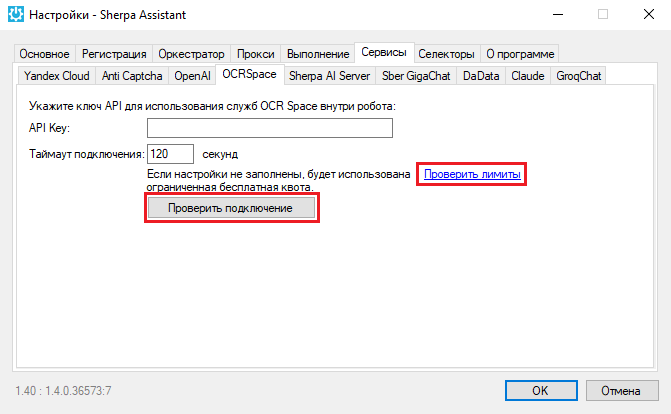
If necessary, you can verify the connection using the corresponding button.
Sherpa AI Server#
Sherpa AI Server is a web service application designed for training, using, and fine-tuning large language models (LLM) within a closed corporate environment. Sherpa AI Server combines a vector document storage, offline model management, support for various artificial intelligence models – of different sizes, with quantization and without, their deployment on GPU or CPU, designing data processing chains, fine-tuning models on user data, access via API, a robotic platform, and a web interface, and much more.
To set up a connection to your Sherpa AI Server account, go to the internal tab "Sherpa AI Server" and specify the token for using the service, as well as the server domain or IP.
If necessary, you can verify the connection using the corresponding button.
.png)
Sber GigaChat#
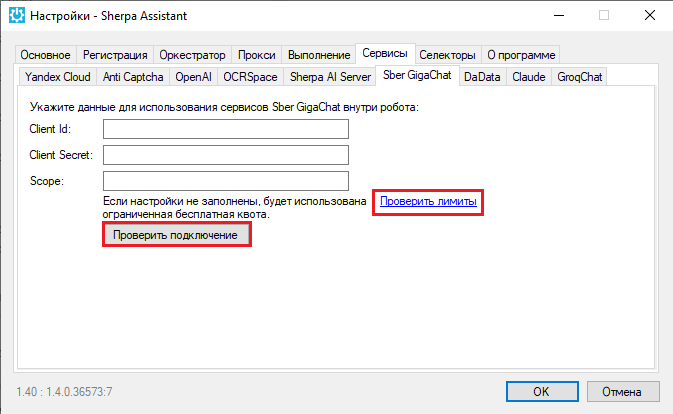
To connect to the Sber GigaChat service, go to the internal tab "Sber GigaChat" and specify the token for using Sber GigaChat services within the Robot.
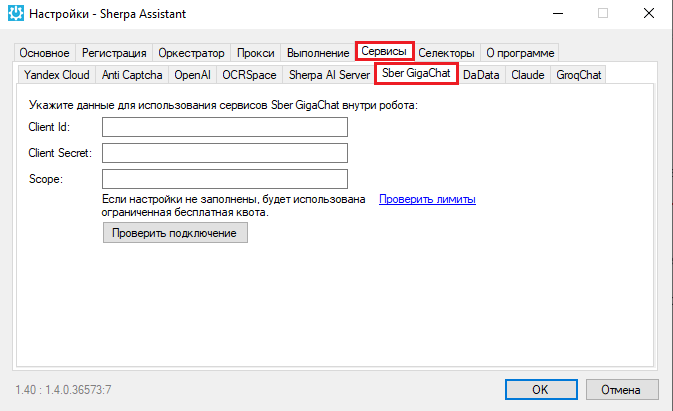
If necessary, you can check the limits and verify the connection using the corresponding buttons.
DaData#
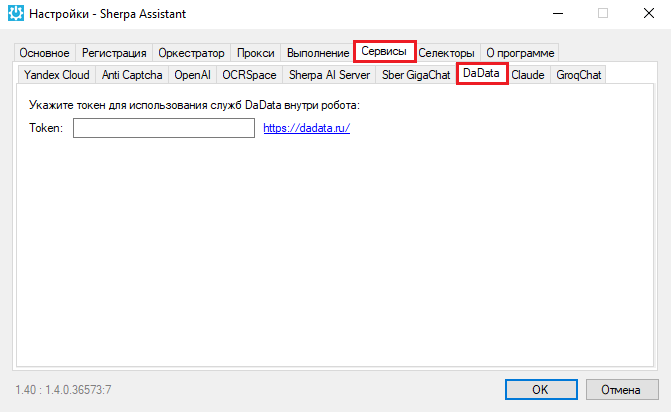
To connect to the DaData service, go to the internal tab "DaData" and specify the token for using DaData services within the Robot.
Claude#
To connect to the Claude service, go to the internal tab "Claude" and specify the API key for using Claude services within the Robot.

If necessary, you can check the limits and verify the connection using the corresponding buttons.

GroqChat#
To connect to the GroqChat service, go to the internal tab "GroqChat" and specify the API key for using GroqChat services within the Robot.

If necessary, you can check the limits and verify the connection using the corresponding buttons.

More about connecting and working with third-party services: