
Robot Messages#
Robot Messages (Logs) are messages that Robots send to the Orchestrator as they perform Tasks.
The "Robot Messages" screen contains the "Robot Messages" table.
Each Robot message (Log) is reflected in the "Robot Messages" table as a single row.
.png)
| No. | Column | Column Description |
| 1. | Robot | Displays the name of the Robot. |
| 2. | Process | Displays the Process that the Robot is executing. |
| 3. | Process Version | Displays the version of the Process that the Robot is executing. |
| 4. | Task | Displays the Task that the Robot is performing. |
| 5. | Type | Displays the type assigned to the Robot message (Log). Possible values:
|
| 6. | Message | Displays the Robot message. |
| 7. | Fields | Displays the parameters of requests and responses, which may include data types and identifiers. |
| 8. | Created | Displays the date and time when this Robot message was created. |
Also in each row of the table there is an icon  ("Show message"), which opens the full text of the Robot message in a separate window:
.png)
All columns in the "Robot Messages" table can be configured by the User. The functions for configuring table columns are described here.
Logging in the Orchestrator on the Designer Side#
Logs in the Orchestrator are Logs that Robots send themselves. There are a number of system Logs. System Logs are recorded if an error occurs within the script that has not been handled anywhere, and the script crashes.
Any messages or variable values can be logged. For this, the Designer provides two blocks:
- "Log to Orchestrator";
- "Log".
Logging with the "Log to Orchestrator" Block#
In the parameters of the "Log to Orchestrator" block, you need to specify a message (any variable of any type) and its criticality level.
.png)
When using this block, you can choose the logging level:
- Info — information;
- Critical — critical;
- Error — error;
- Warning — warning;
- Debug — debugging.
You can also send a screenshot to the Orchestrator along with the message by checking the "Screenshot" flag:
.png)
The message will be displayed on the "Robot Messages" screen.
If a screenshot was attached to the Robot's message, the corresponding icon will appear in the "Screenshot" column. Click on the icon to view the screenshot in its original size:
.png)
Logging with the "Log" Block#
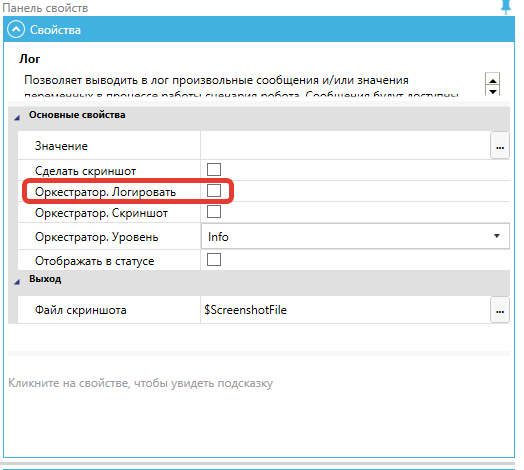
Another way to log is to check the "Orchestrator. Log" checkbox in the "Log" block in the Designer:
It is not recommended to use logging to the Orchestrator within the body of loops with a short interval, as this may lead to a large number of unnecessary messages. For security reasons, the Orchestrator may limit the maximum number of messages received from the Robot in a unit of time.