
Remote Debugging of the Robot#
With remote debugging of the Robot, you can configure routine business processes on remote devices.
Remote debugging of the robot is demonstrated here.
To work in remote debugging mode, in the "Debug" menu, click the "Local" button (local debugging mode is set by default) and select "Remote" from the dropdown list.
.png)
Then click on the icon .png) , after which the "Remote Debugging" window will open. After configuring the remote debugging of the robot, the IP and client name available for remote debugging will appear in this window.
, after which the "Remote Debugging" window will open. After configuring the remote debugging of the robot, the IP and client name available for remote debugging will appear in this window.
.png)
After enabling remote debugging mode in Sherpa Designer, you need to configure remote debugging in Sherpa Assistant. Launch the program, then right-click on the icon in the tray .png) and select "Settings..." from the context menu.
and select "Settings..." from the context menu.
Note: You can also enable or disable debugging using the context menu item "Remote Debugging."
In the opened window, select the "Execution" tab.
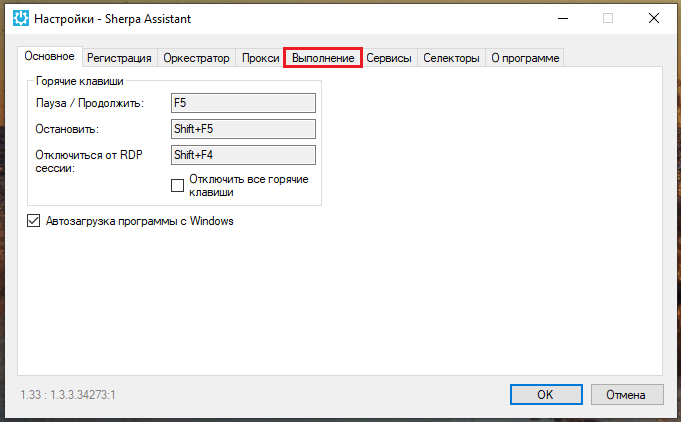
In the "Execution" tab menu, select the "Remote Debugging" tab.
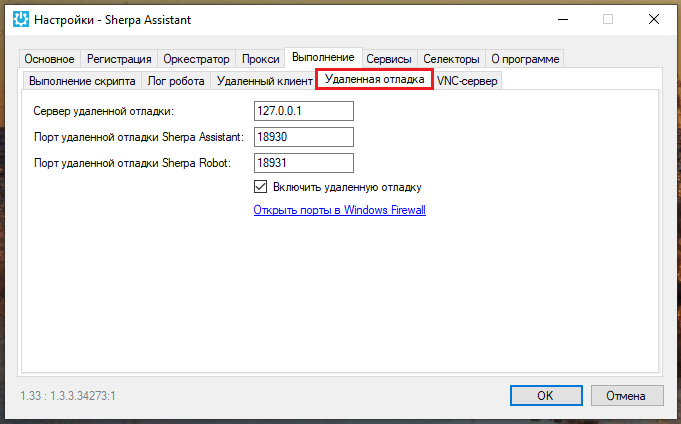
In the "Remote Debugging" tab menu, specify:
- remote debugging server;
- Sherpa Assistant remote debugging port;
- Sherpa Robot remote debugging port.
Check the box in the "Enable Remote Debugging" field.
Click the "OK" button. Remote debugging of the robot on the Sherpa RPA platform is enabled.
.png)
Check the connection of the remote client in the Sherpa Designer program. To do this, click the button again. A line with the IP and client name will appear in the opened window.
.png)
| No. | Interface Element | Description |
| 1. | indicator  | Client is connected. |
| 2. | icon  | Default client. If multiple clients are available for remote debugging, this button can be used to switch the client on which remote debugging will be performed. |
| 3. | column "Client IP" | IP of the client available for remote debugging. |
| 4. | column "Client Name" | Name of the client available for remote debugging. |
| 5. | icon  | View the desktop of the connected client. |
| 6. | icon .png) | Remove the client from the list of available for remote debugging. |
To check the operation of remote debugging mode, click the button to view the desktop of the connected client.
In the client desktop viewing window, you can enable auto-refresh by checking the "Auto-refresh" box. Or use manual refresh with the "Refresh" button. The check in the "Fit to Window" field is set by default, and it can also be unchecked.
 | If the Job is executed by the Robot from Sherpa Orchestrator, it is important to disable remote debugging. Otherwise, the Robot risks not logging out. |